A match week in three steps
-
Check the dashboard
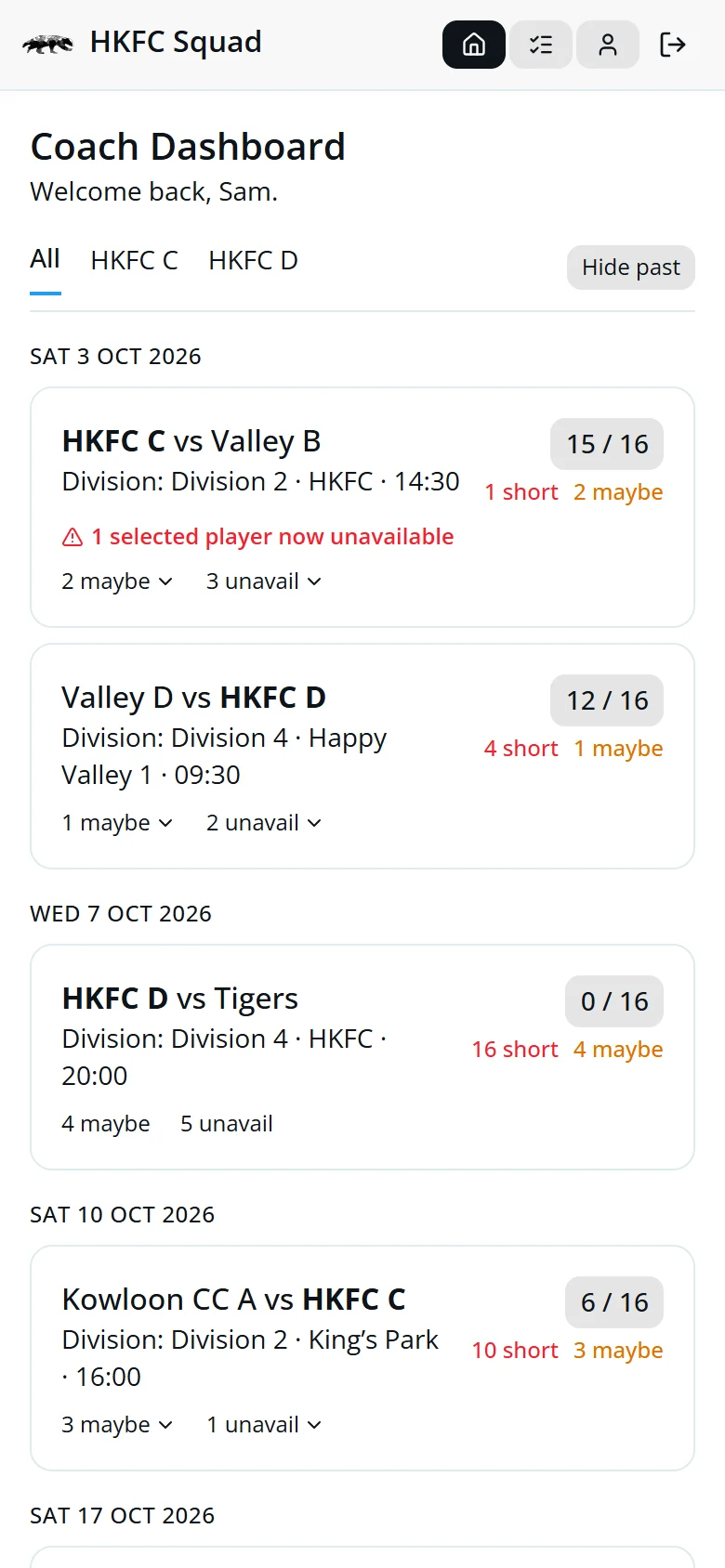
See who's in and who's out for every fixture.
-
Pick and save
Tap a fixture, tap players to select them, then tap Save.
-
Tell the squad
Tap Notify and paste the message into your team's WhatsApp group.
Switch to Coach View
Coaches sign in like everyone else. Tap the shield icon at the top of your player screen to open Coach View.
- DashboardYour fixtures
- RankingOrder the section
- Player ViewYour own fixtures

Every fixture at a glance
- 15 / 16Selected, out of the squad size.
- 1 shortHow many more players you need.
- ⚠ WarningA picked player is now unavailable, or picked twice that day.
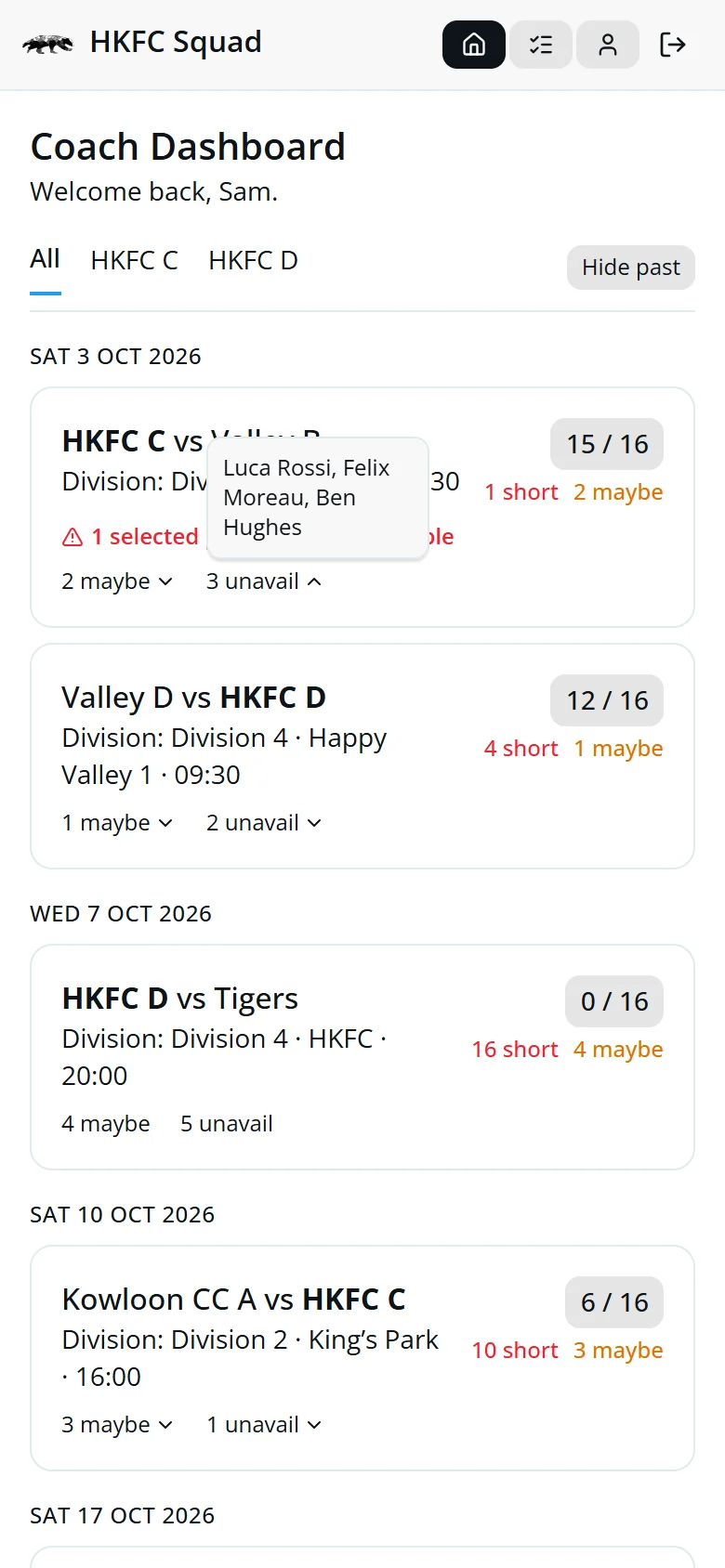
- 2 maybe ⌄Tap to see who.
Coach more than one team? Use the tabs to show one at a time. With a team open, Subscribe to Team Calendar adds its fixtures to your calendar.
Picking the squad
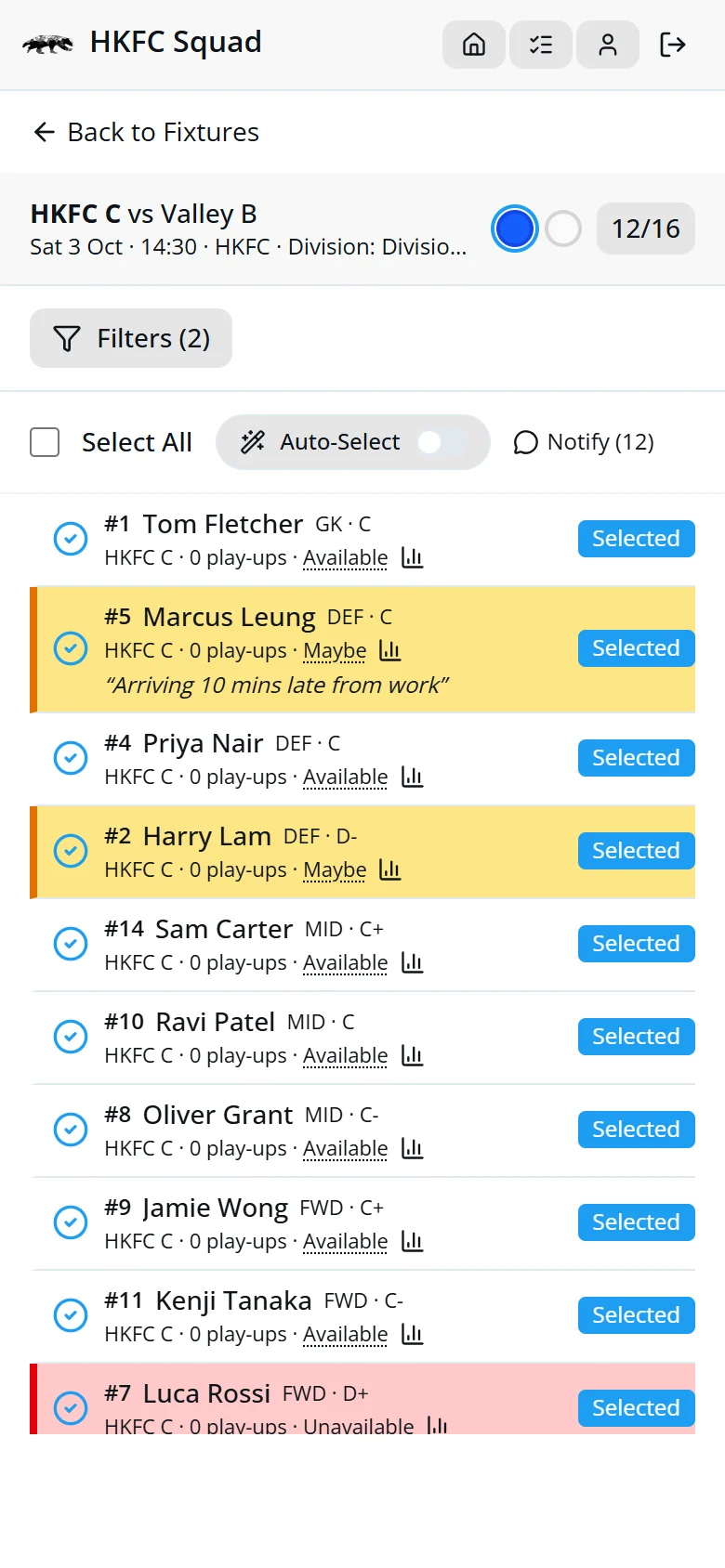
- Tap a fixture on the dashboard.
- Tap players to select or deselect them.
- Tap the blue or white circle to set the kit.
- Tap Save at the bottom.
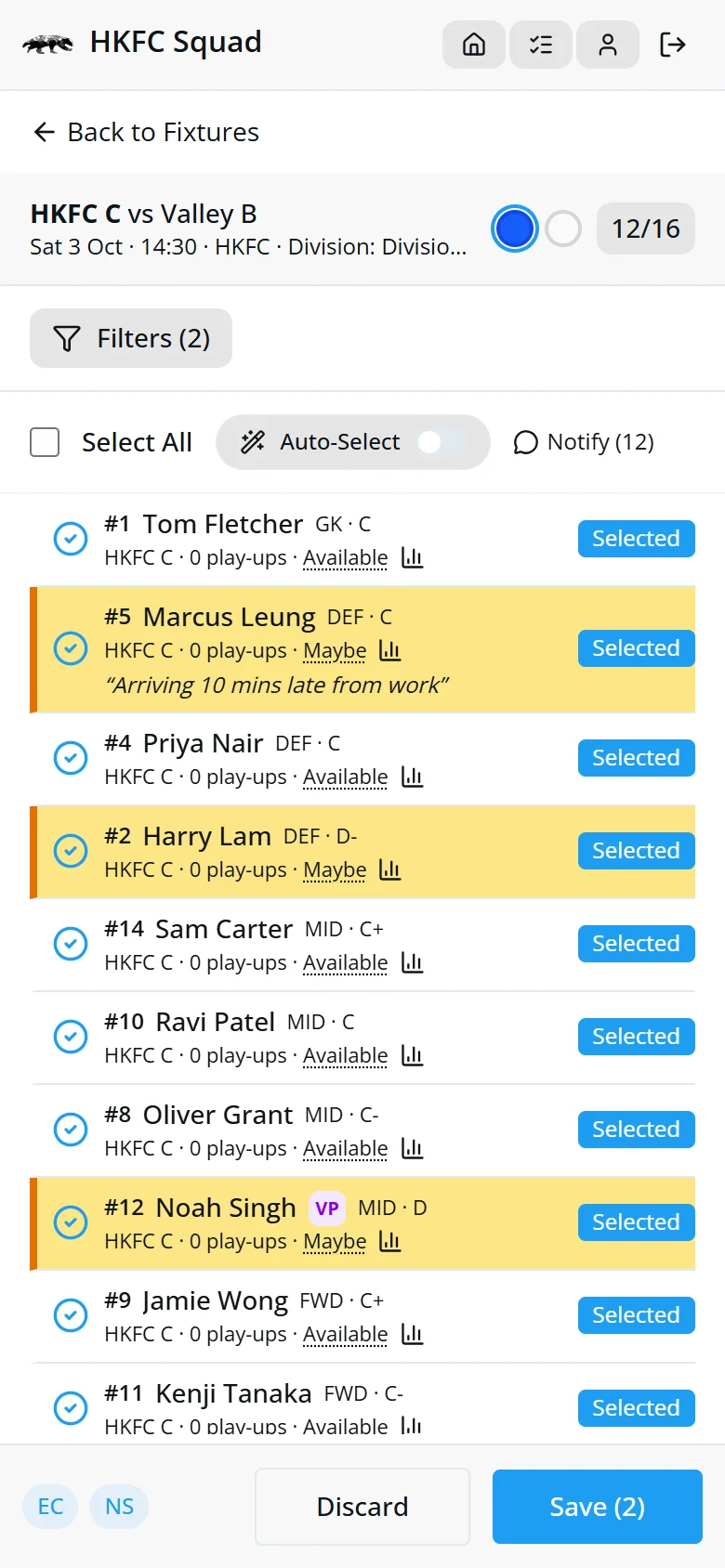
Yellow rows are Maybe and red rows are Unavailable. Players' notes show under their names. Use Filters to search or narrow the list.
What the badges mean
- 5 play-upsPlay-ups used. Amber, then red, near the limit.
- BlockedCan't play, with the reason.
- WarningCan play, but check first.
- U21 · VPUnder-21 or visiting player.
- 📊Opens the player's season stats.
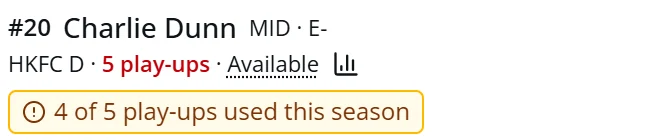

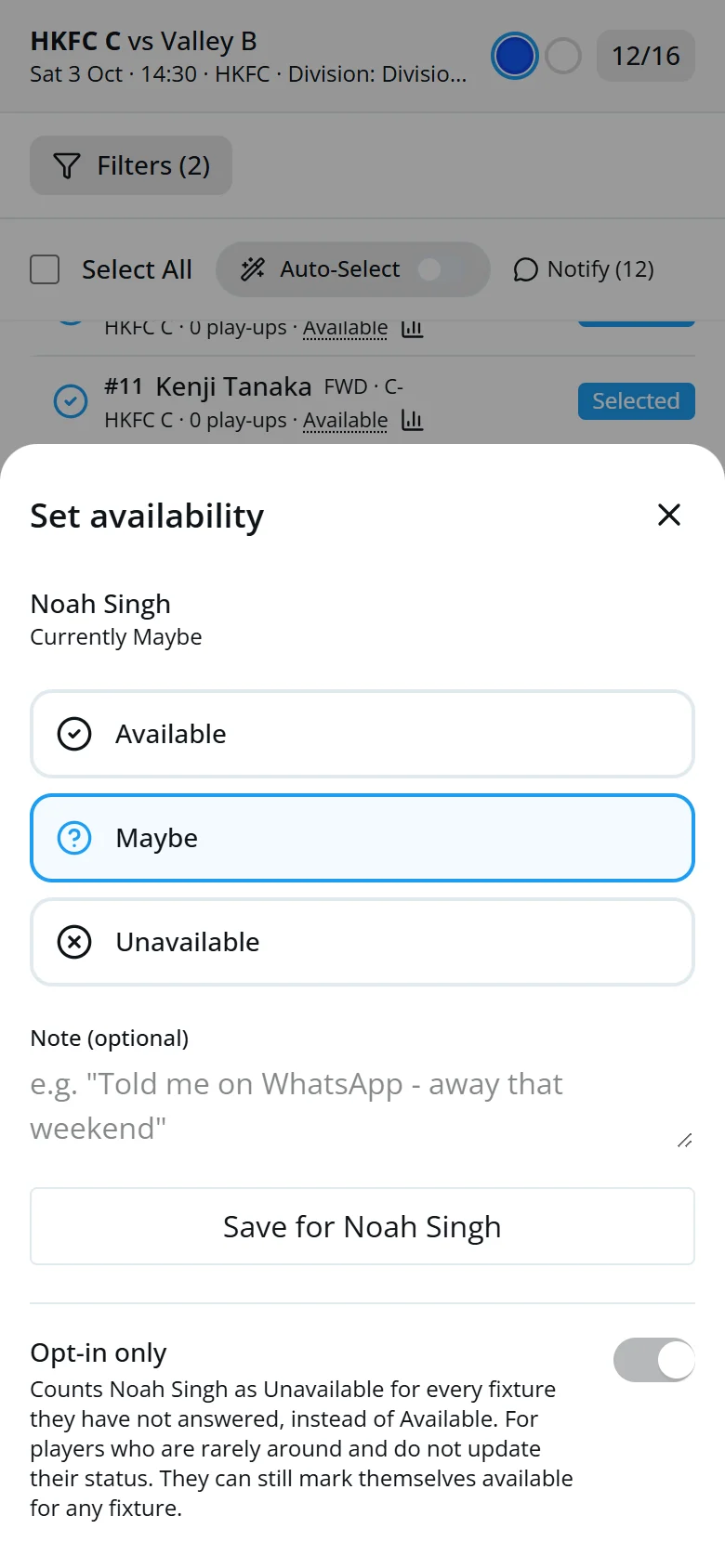
Answer for a player
- Tap the underlined status in their row.
- Pick their answer and add a note if useful.
- Tap Save.
Opt-in only is for players who are rarely around and never update the app. They count as Unavailable unless they say otherwise.
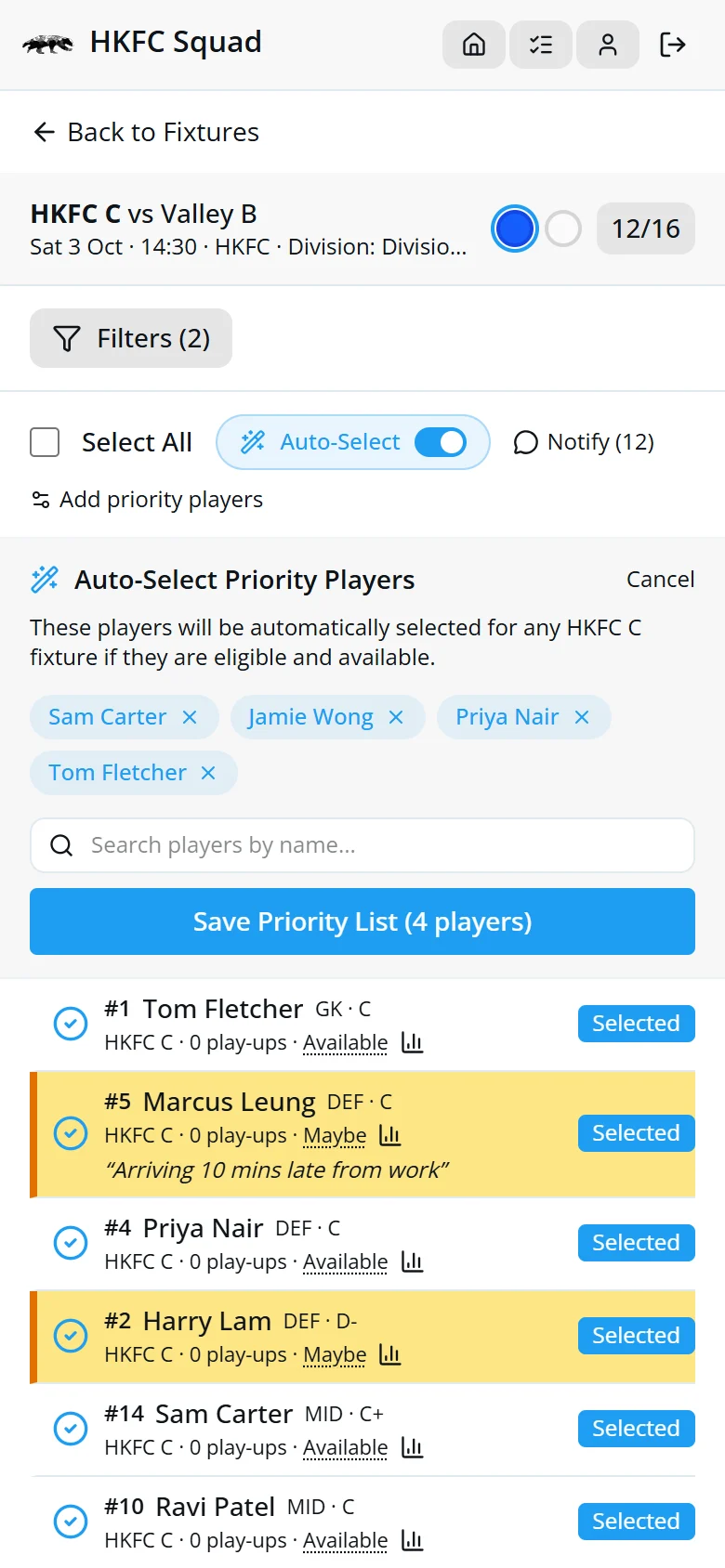
Auto-Select your regulars
- Turn on Auto-Select.
- Tap Add priority players and choose your regulars.
- Tap Save Priority List.
They're then picked automatically whenever they're eligible and available. You can still change the squad by hand.
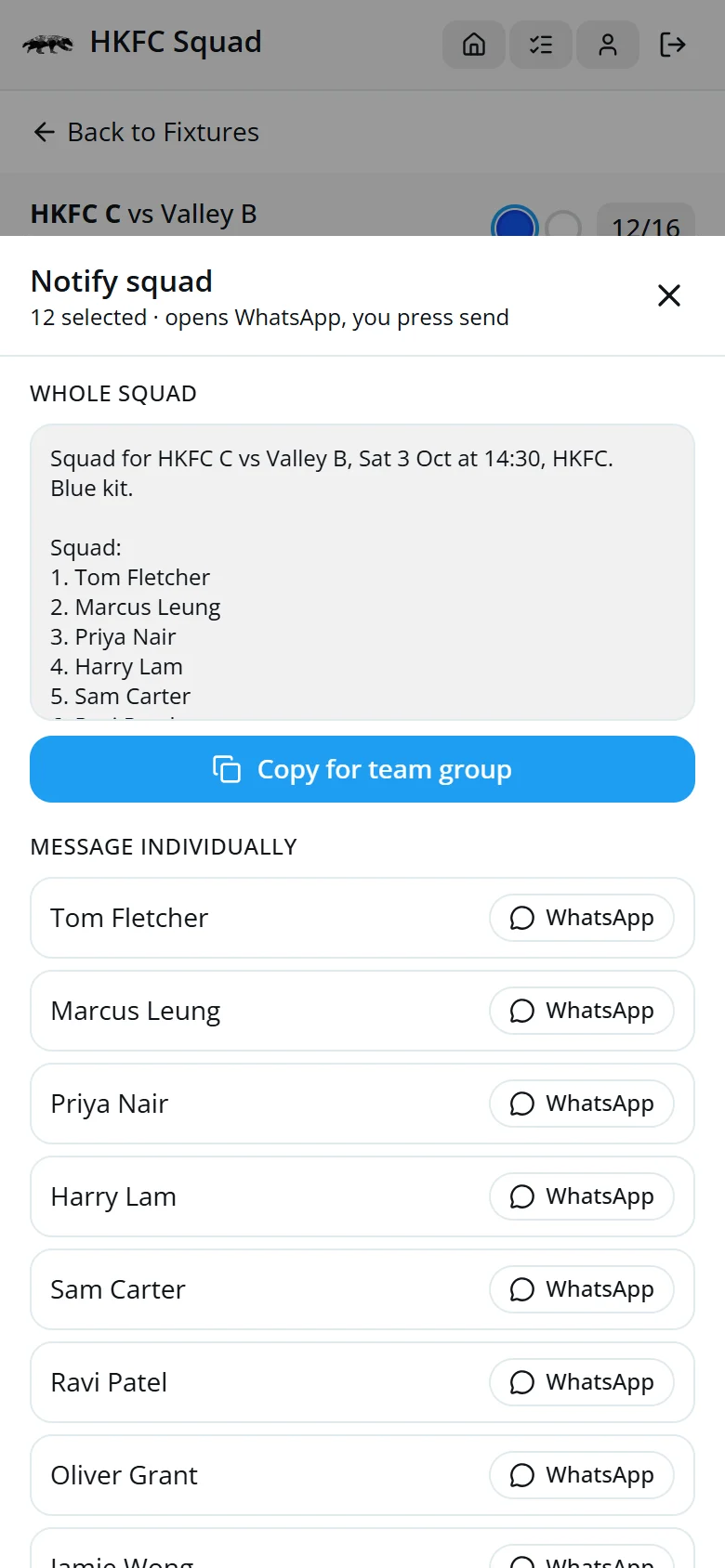
Send it on WhatsApp
After saving, tap Notify.
- GroupCopy for team group copies the fixture details and squad list for your team chat.
- 1-to-1Tap WhatsApp beside a player to message them.
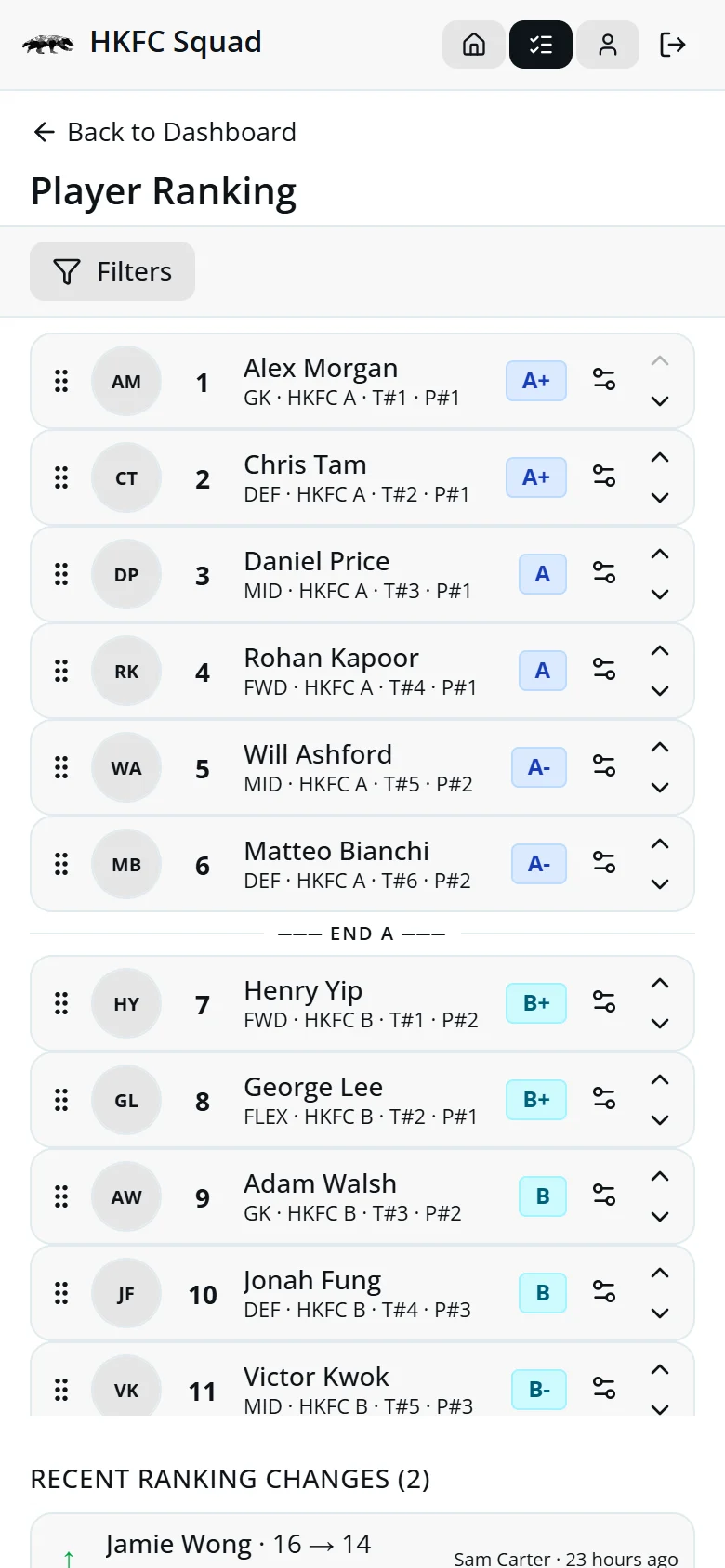
Rank the section
Every active player in the section, best first. Ability groups (A, B, C…) follow from the order.
- Drag a player, or use the arrows.
- Add a note if you like.
- Tap Save.
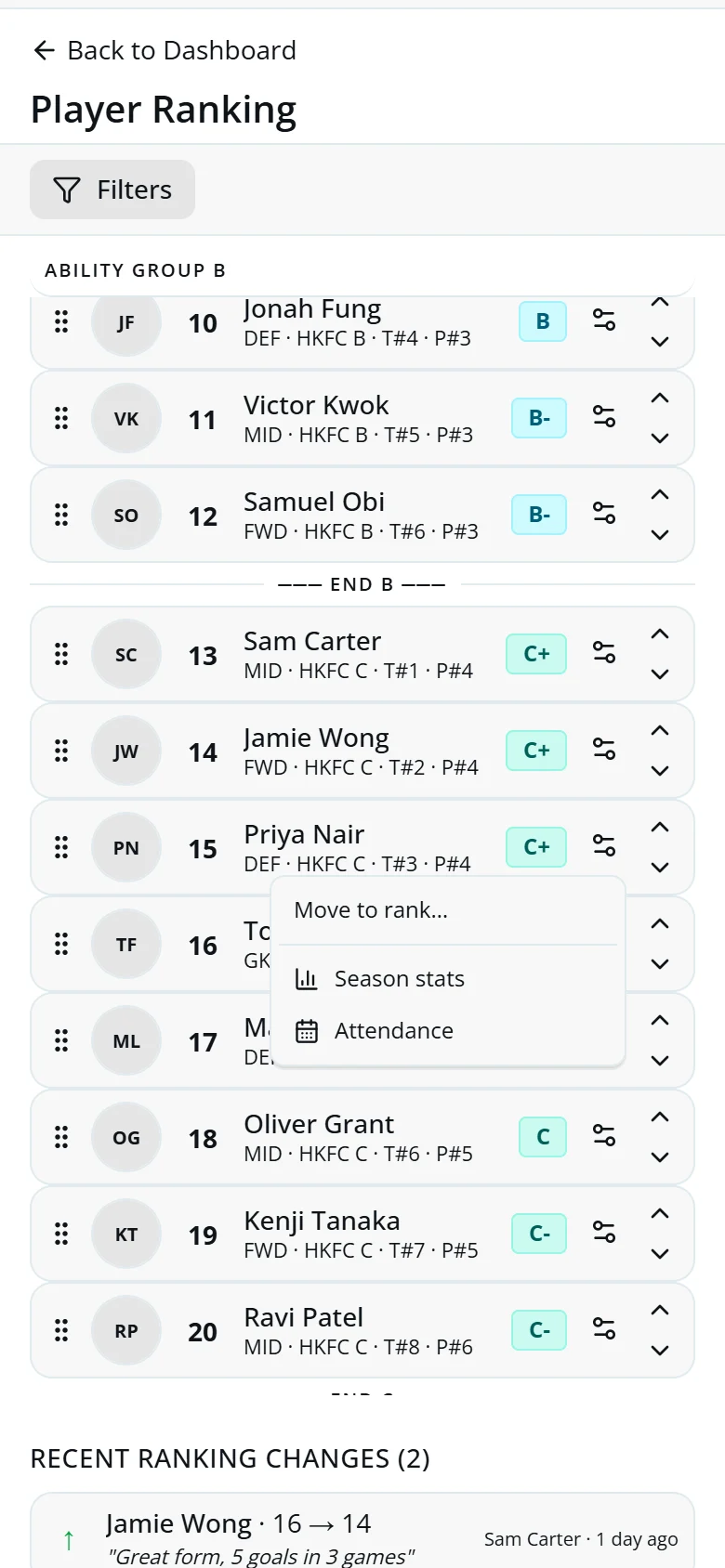
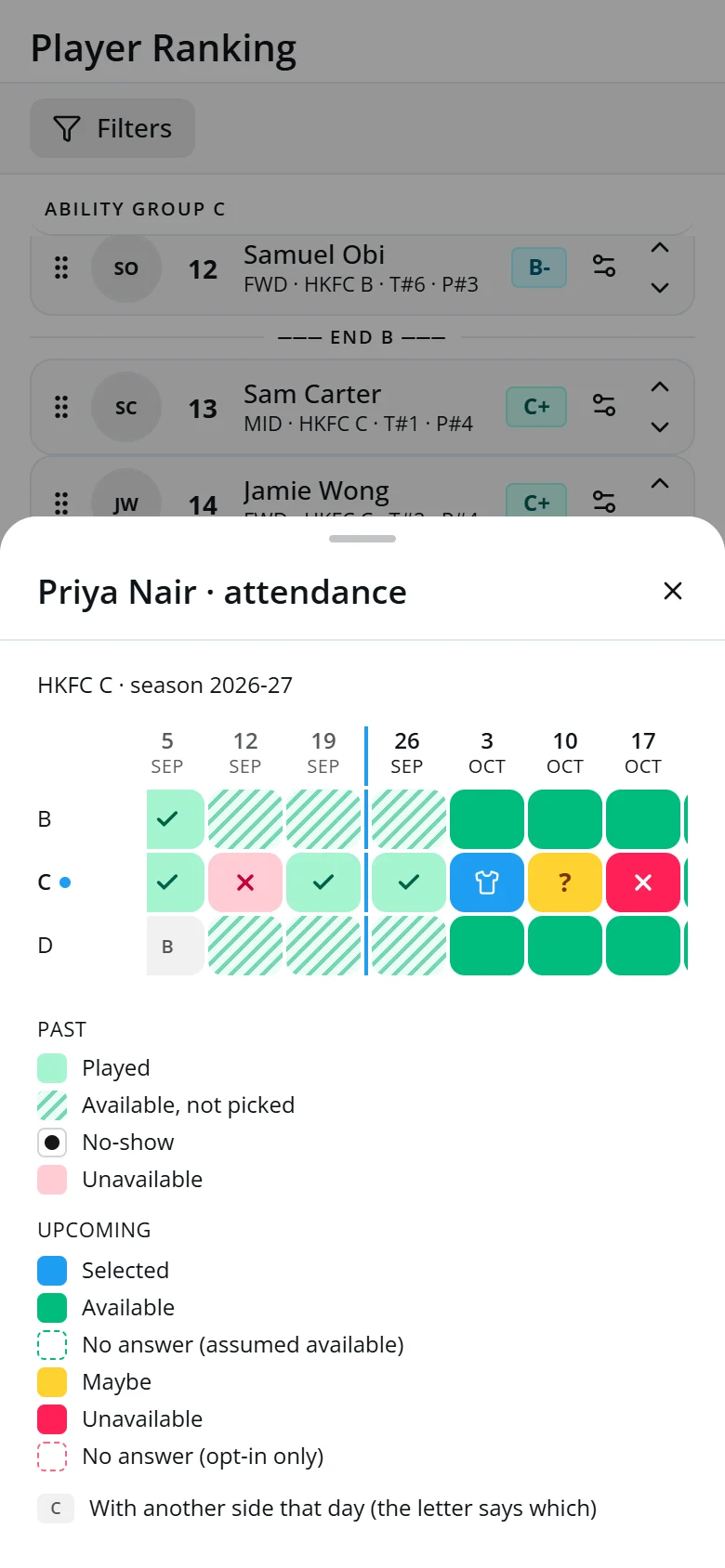
The gear on each row offers Move to rank…, Season stats and Attendance, a week-by-week grid of the player's season.
Quick answers
A player hasn't answered. Are they available?
Yes, unless they've set a preference or you've made them Opt-in only.
Why can't I see some players?
Players who can't play are hidden. Open Filters and turn on “Blocked” to see them.
I picked someone already in another squad that day.
If that squad is for a lower team, saving takes them out of it and the app tells you who moved, so that coach can find a replacement.
Do players know when they're selected?
Their app and synced calendar show it straight away. Use Notify to message them too.